Borrowers make a reservation for Library of Things in MyTurn Reservations rather than in the Library's online catalog. If you have never made a reservation before, these directions can help you get started.
You will need your Library card number and PIN to make a reservation. After looking through these directions, go to the MyTurn Library of Things Reservations site to get started.
Would you like to learn more? See Library of Things for more information and an FAQ.
Need help? Ask a Library staff member at any of our locations or call, text or email Ask-a-Librarian.

Login Using Your Library Card Number and PIN
The Log In prompt is located in the upper right corner. To look for a particular item, simply enter the item name in the search box. If you would like to browse, you can select one or more categories to narrow down to a list of choices of interest to your book club. Select "Available now" if you don't want to wait, and only want to see the choices that are immediately available.
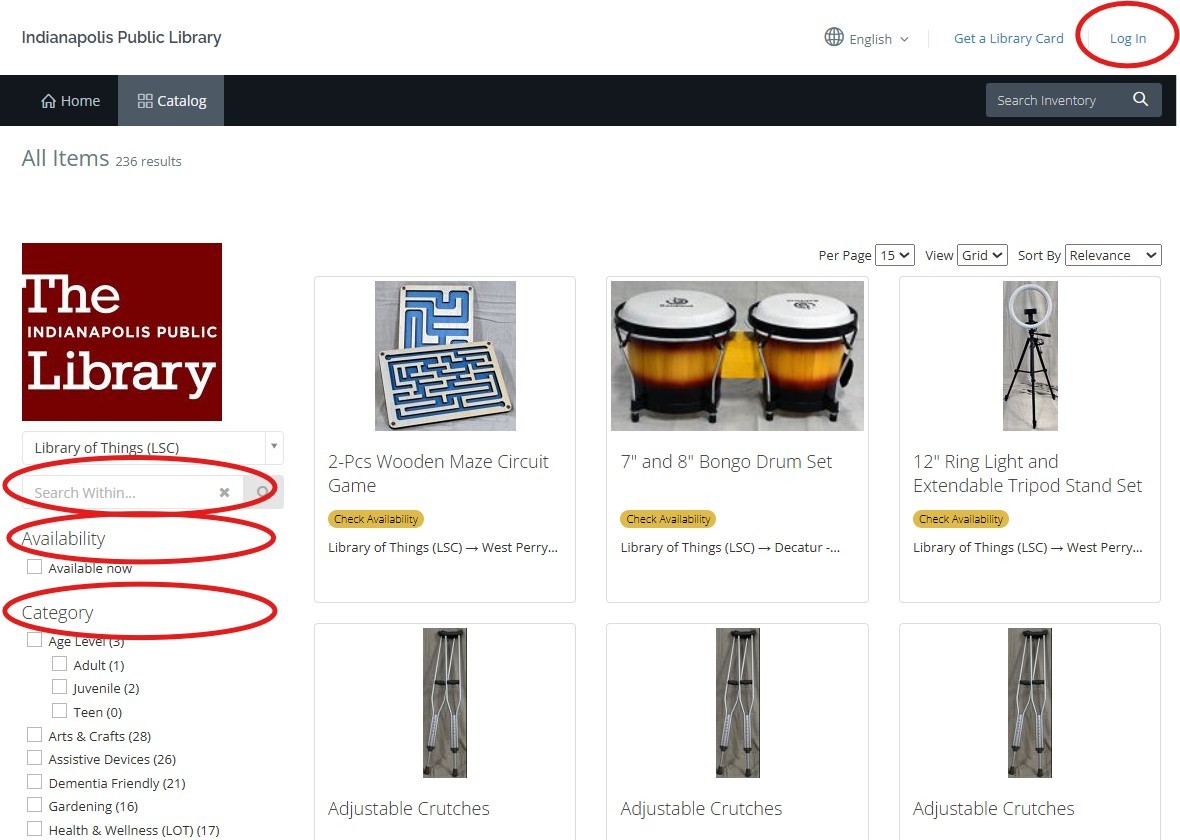
Make a Library of Things Selection
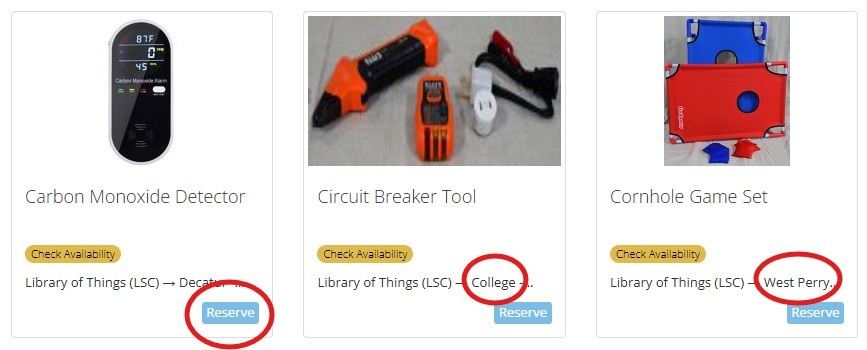
Note that not all locations have The Library of Things and individual items are only in stock at some locations. While you are browsing through the items, there is a note that will tell which branch you need to go to in order to pick up the item.
Once you see an item in The Library of Things and confirm where you need to pickup the item, click "Reserve."
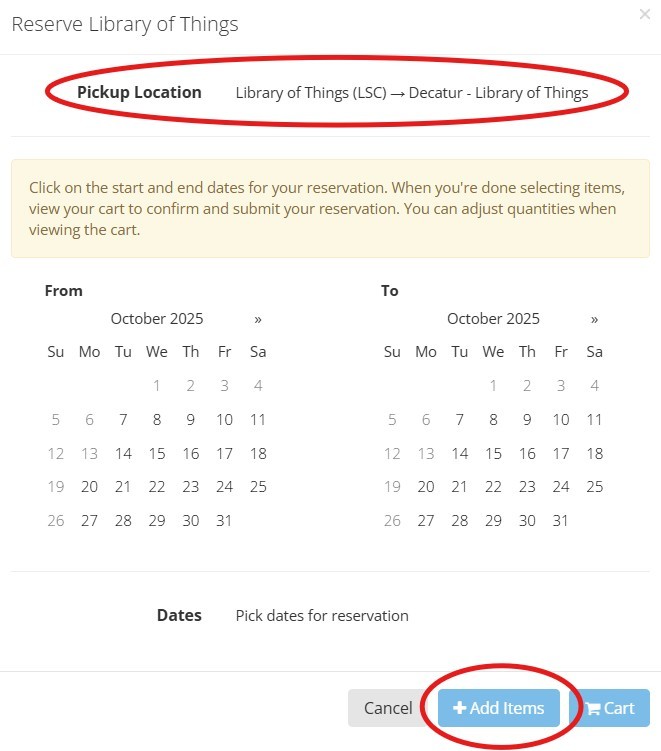
Choose Your Reservation Dates
You will again be reminded where you need to go to pickup the item. Select the dates you would like to reserve the item. When you are finished, click "+Add items." This will add the reservation to your cart.
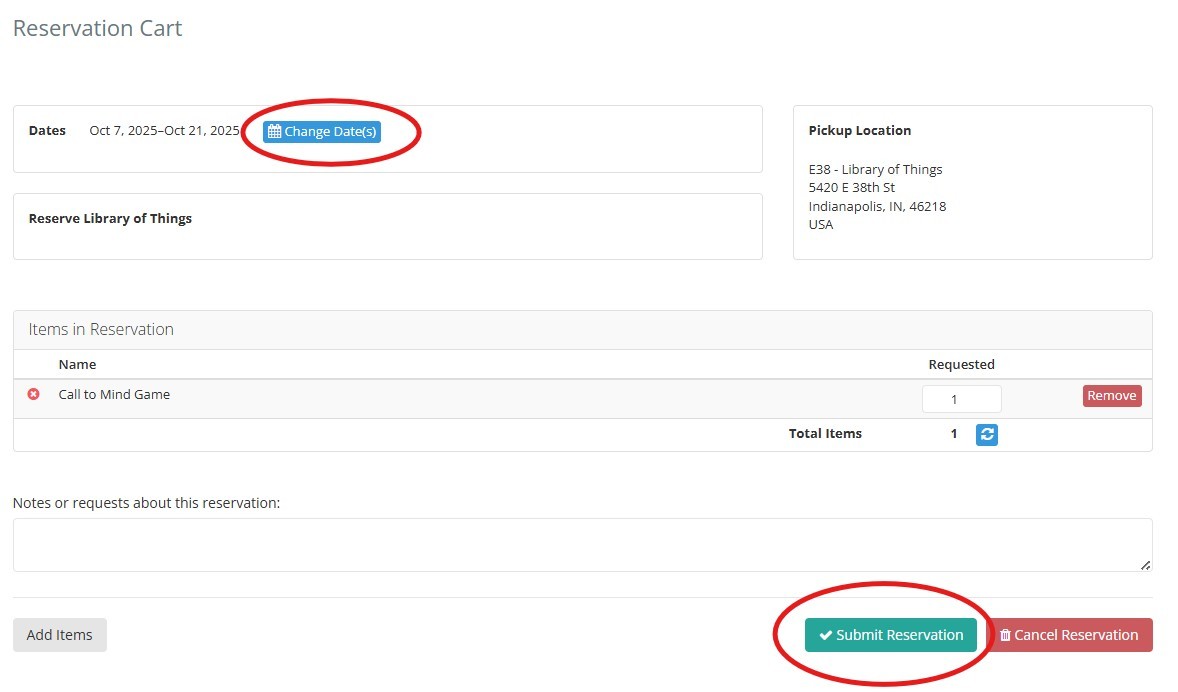
Verify Your Selections and Submit Your Request
Click on the cart icon at the top of the page to open your request and submit your reservation. At this point you can double check all of the details to make sure your reservation is correct. You can still change the reservation dates if you'd like. Once you confirm the information is correct, click "Submit Reservation."
You’ll receive an email notification when your item is ready for pickup. Pick up your item at the checkout desk.
Returning Library of Things Items
Return items inside at one of the participating Library of Things branches: College Avenue, Decatur, East 38th Street, Fort Ben, Southport, or West Perry. Do not use the book drop for returns.